> For the complete documentation index, see [llms.txt](https://docs.rekor.ai/llms.txt). Markdown versions of documentation pages are available by appending `.md` to page URLs; this page is available as [Markdown](https://docs.rekor.ai/scout/scout-dashboard/configuration/agents.md).
# Agents
A list of all active and inactive agents will be shown in the detailed view of the “Cameras” menu where the green thumbs up represents active status and the red thumbs down depicts inactive status. This is the easiest way to check whether your cameras are actively reading plates.
## Agent Name
The agent name can be changed in order to customize the order of cameras. Examples of naming schemes are the specific location of the camera, cross streets, or an address. To change the name of the agent, click on the agent name, and a new window will open.
Click the “X” with a gray circle background inside the box to clear the current name and enter the new name. Click on the checkmark to save.
## Agent Configuration
Under the Agents screen, you can also view the current video stream and agent status. Additional functionalities include new video stream configuration, agent parameter settings, and review of the current live agent log which can be accessed and set by clicking on the `Configure` button of the specific agent. Unused agents can also be removed by clicking on the `Delete` button in the same box.
Upon encountering this error, restart the system and check for the agent connection shortly after. If the error persists, contact Rekor Support by [opening a support ticket](https://help.rekor.ai/kb-tickets/new).
Clicking `Configure` on a connected agent will redirect the user to the following screen.
## Status
The “Status” section shows the current state of a specific agent, agent version, CPU usage, Agent and System Uptime, and Hard Drive Capacity.
## Video Streams
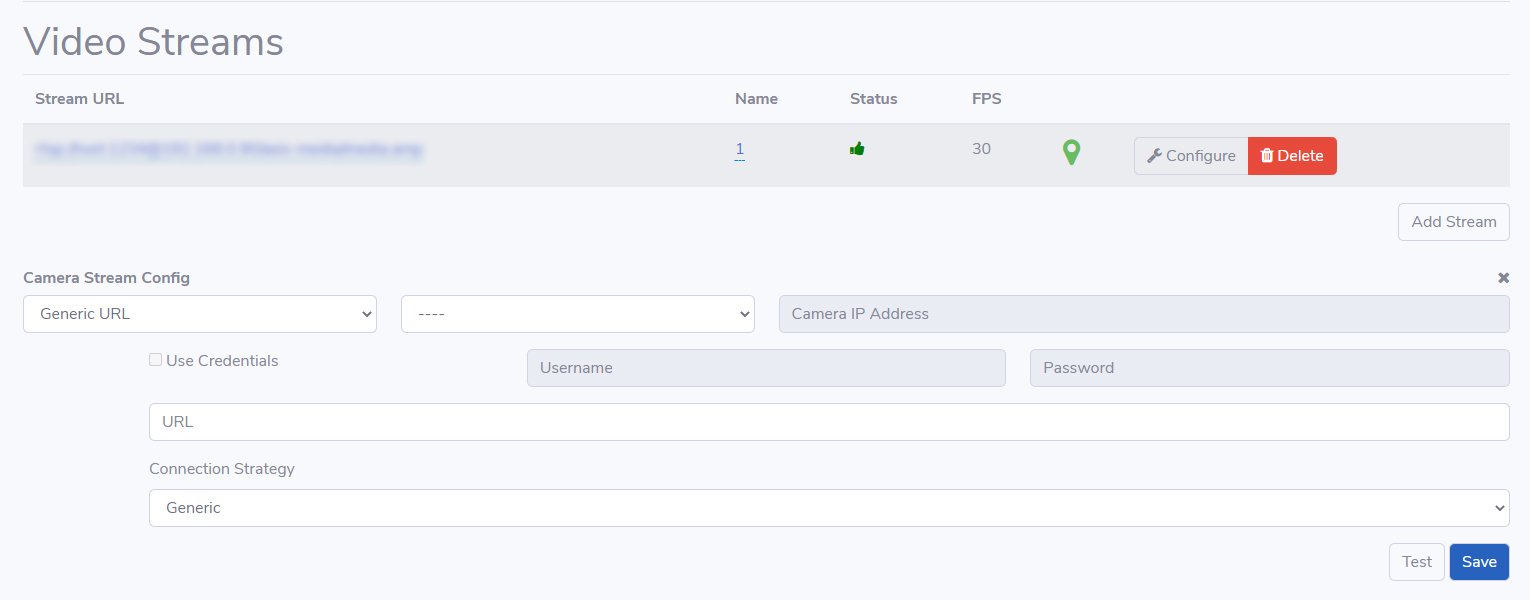
This section of the agent configuration screen shows all related configuration details of the camera.
The Stream URL sub-section lists the video stream URL, camera name, status, frames per second (FPS), and location of the camera. Additional video streams can be added if needed.
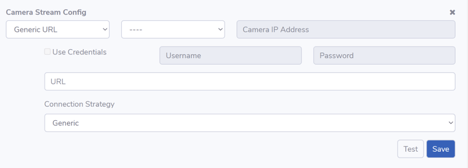
The “Camera Stream Config” sub-section allows users to customize the stream to specific camera brands or use a generic URL.
Once a camera stream's information is filled in, test the connection to make sure it is configured correctly before saving the configuration.
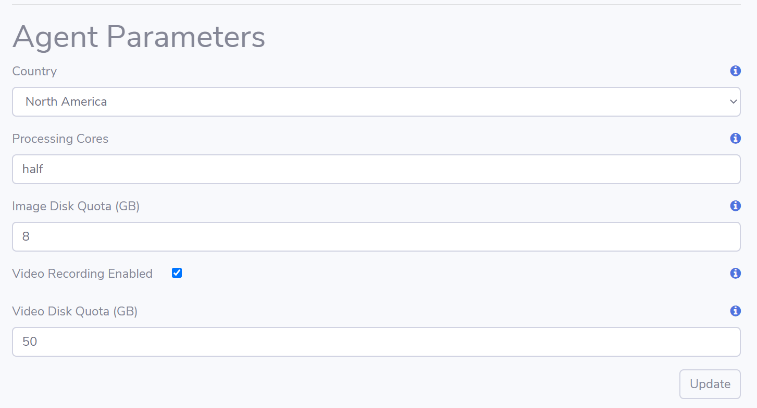
## Agent Parameters
The “Agent Parameters” section allows you to specify Country, Processing Cores, Image Disk Quota, option for Video Recording Enabled, and Video Disk Quota.
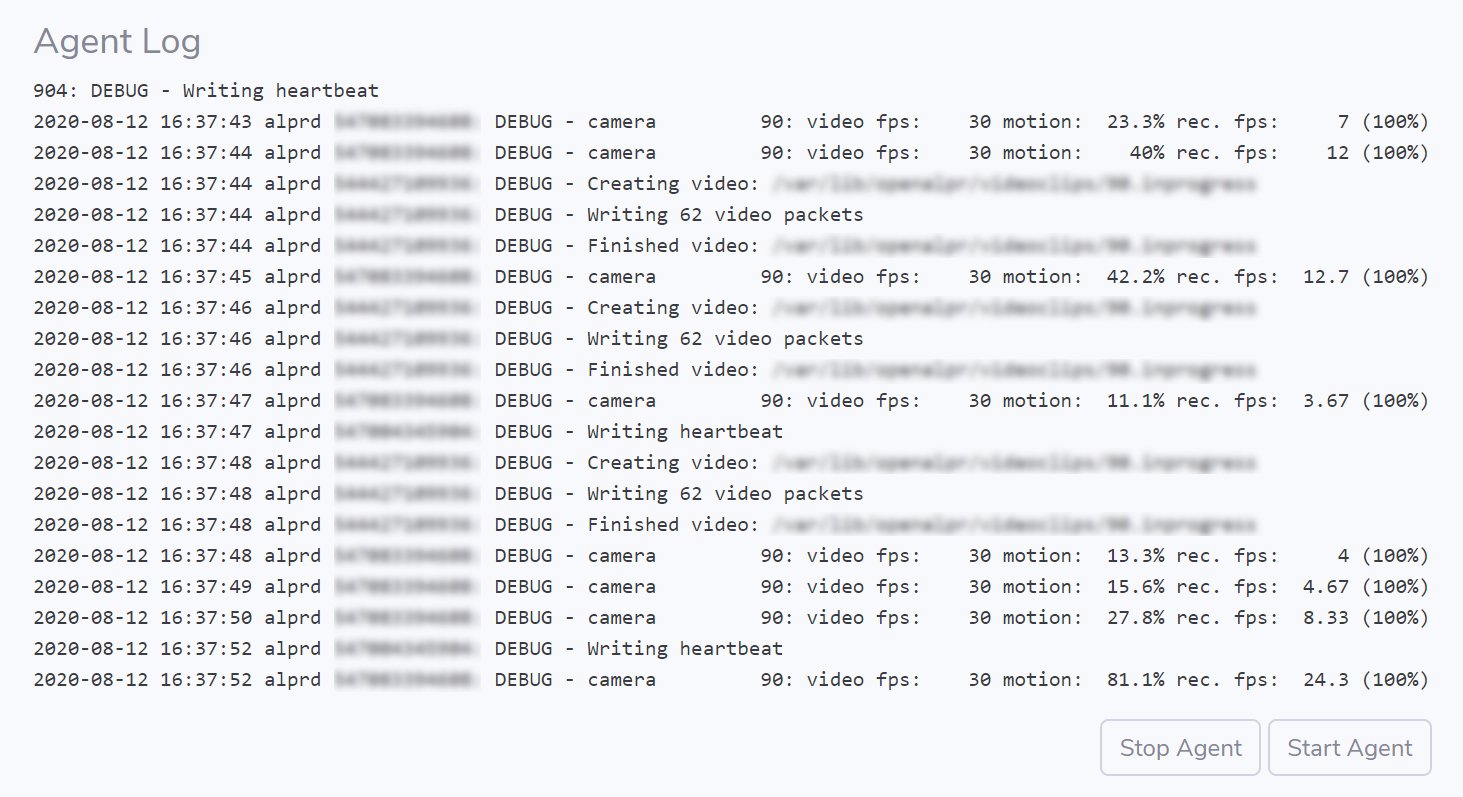
## Agent Log
The “Agent Log” provides detailed information about the activities and status of the agent in real time. It records all the information about events that happen in the system. Also, “Agent Start” and “Agent Stop” features are included at the bottom of the “Agent Log” sub-section to be used as needed.
---
# Agent Instructions
This documentation is published with GitBook. GitBook is the documentation platform designed so that both humans and AI agents can read, navigate, and reason over technical content effectively. Learn more at gitbook.com.
## Querying This Documentation
If you need additional information that is not directly available in this page, you can query the documentation by asking a question.
Perform an HTTP GET request on the following URL with the `ask` and `goal` query parameters:
```
GET https://docs.rekor.ai/scout/scout-dashboard/configuration/agents.md?ask=&goal=
```
`ask` is the immediate question: it should be specific, self-contained, and written in natural language.
`goal` is what the user is ultimately trying to achieve, the reason they need the answer. Sharing it helps GitBook give you a better, more relevant answer. A goal is most helpful when it describes the outcome the user wants rather than restating the question. For example, with `ask=how do I create an API token`, a goal like `automate deployments from our CI pipeline` lets GitBook tailor the answer to that use case.
The response will contain a direct answer to the question and relevant excerpts and sources from the documentation.
Use this mechanism when the answer is not explicitly present in the current page, you need clarification or additional context, or you want to retrieve related documentation sections.