> For the complete documentation index, see [llms.txt](https://docs.rekor.ai/llms.txt). Markdown versions of documentation pages are available by appending `.md` to page URLs; this page is available as [Markdown](https://docs.rekor.ai/rekor-discover-r/class-count-and-speed/emergency-preparedness/scheduled-evacuations.md).
# Scheduled Evacuations
#### Select Stations
Before we proceed, confirm that your contraflow lanes are set up. Navigate to the menu and for each device, select the Edit Data Forwarding Lanes action and verify.
Once everything looks good, select the stations along the evacuation routes. Stations with contraflow lanes will automatically start monitoring traffic in the reverse direction, and evacuation shoulders will also begin monitoring traffic.
You also have the option to choose or modify your station selections using the Table view. To select all stations at once, click the Select All button.
#### Schedule
In this step, plan for an evacuation by setting the monitoring schedule. Customize the start and end times to cover the entire evacuation period. Devices previously lane-mapped with contraflow lanes will automatically transition to monitoring traffic in the reverse direction once the scheduled evacuation begins, returning to normal once the evacuation concludes.
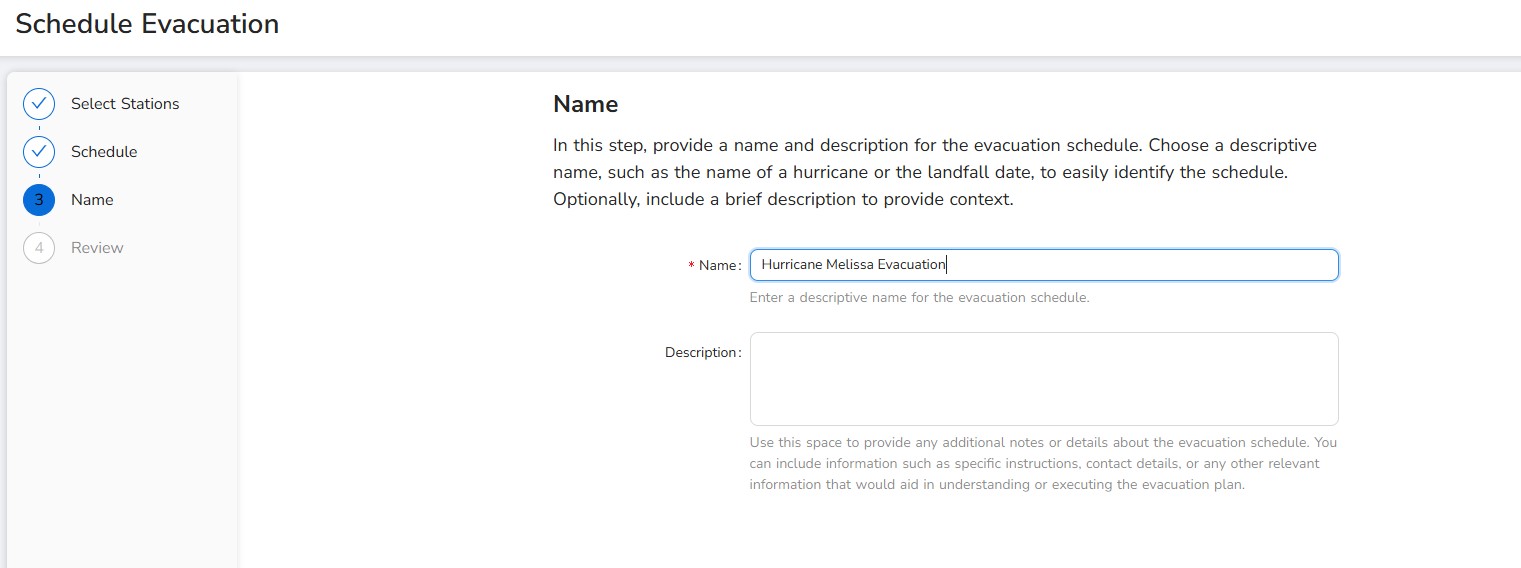
#### Name
In this step, provide a name and description for the evacuation schedule. Choose a descriptive name, such as the name of a hurricane or the landfall date, to easily identify the schedule. Optionally, include a brief description to provide context.
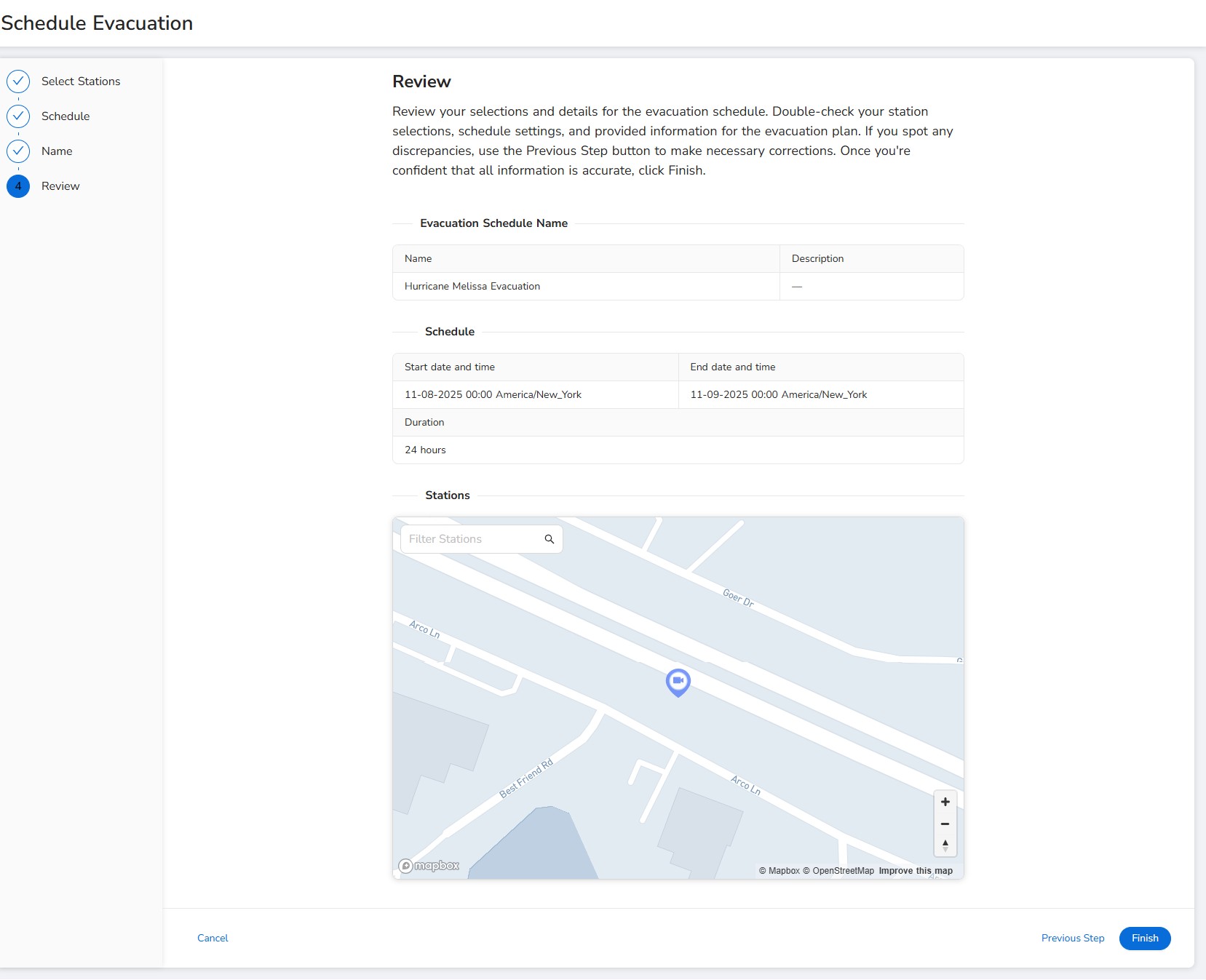
#### Review
Review your selections and details for the evacuation schedule. Double-check your station selections, schedule settings, and provided information for the evacuation plan. If you spot any discrepancies, use the Previous Step button to make necessary corrections. Once you're confident that all information is accurate, click Finish.
Congratualtions! You have scheduled an evacuation!
---
# Agent Instructions
This documentation is published with GitBook. GitBook is the documentation platform designed so that both humans and AI agents can read, navigate, and reason over technical content effectively. Learn more at gitbook.com.
## Querying This Documentation
If you need additional information that is not directly available in this page, you can query the documentation dynamically by asking a question.
Perform an HTTP GET request on the current page URL with the `ask` query parameter, and the optional `goal` query parameter:
```
GET https://docs.rekor.ai/rekor-discover-r/class-count-and-speed/emergency-preparedness/scheduled-evacuations.md?ask=&goal=
```
`ask` is the immediate question: it should be specific, self-contained, and written in natural language.
`goal` is optional and describes the broader end goal you are ultimately trying to accomplish on behalf of the user. GitBook uses it to tailor the answer towards what is most useful for that goal.
The response will contain a direct answer to the question and relevant excerpts and sources from the documentation.
Use this mechanism when the answer is not explicitly present in the current page, you need clarification or additional context, or you want to retrieve related documentation sections.